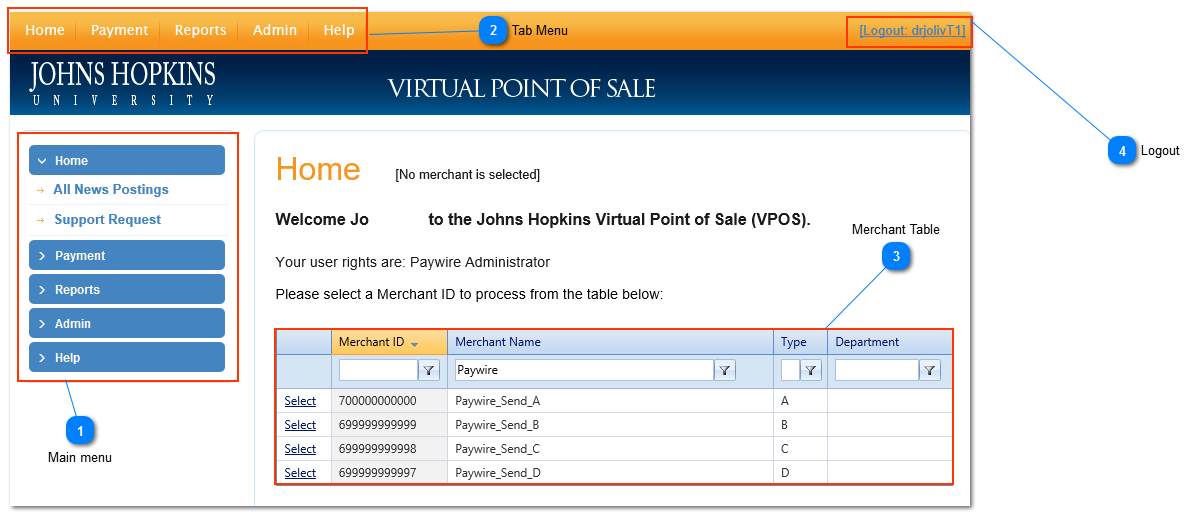
When a user first logs in, he/she will come to the Johns Hopkins Virtual Point of Sale Home Page. The Home Page will show the user's name and what their rights areand a table of merchants(3) that the user can select from. A user must select a merchant before any payments can be processed.
Menu
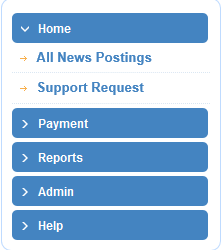
The Main Menu(1)is located to the far left of the the Home screen. Clicking the "Home" button within the main menu navigates users to the Home Page. Beneath the "Home" button are more links to different sections of the VPOS. Clicking "All News Postings" will show news relevant to the VPOS. If the user needs to submit a support request ticket he/she may click "Support Request", which will take him/her to a separate page where he/she can open a new support ticket, or view previously submitted tickets. Below the Home Page links are links to every top level page in the VPOS. Users can click "Payment" to Make Payment, view Recurring Billing plans or Search Transactions. User can click Reports to generate various reports including: Transaction Reports, User Reports and Merchant Reports. All of the pages that can be accessed from the main menu located on the left of the page but can also be access by using the tabs at the top of the page(2).
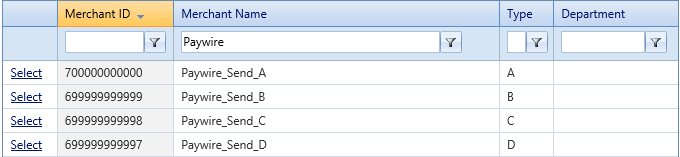
Before any payments can be processed the user must first select a merchant from the table(3). There are four parameters in which the user can use to filter the table: "MID" (Merchant Identity)," Merchant Name", "Type", "Department". Each of the parameters are partially applied filters, that is the entered filter only has to partially match the a prefix of a column to find a match. By default the table only displays ten merchants at a time, the user can increase this to twenty or fifty by clicking a drop down box located at the bottom of the table. Located at the bottom left of the table are arrows that allow the user to page through the available merchants. After filtering the list of merchants and finding the correct merchant the user can select it by clicking the "Select" button located in the far left column of that Merchant's row of the table. Once the user has selected a merchant the merchants name will be displayed atop the screen and the user can now click "Payment" to process a payment. The user can always select a new merchant by clicking the "Home" button located left of the screen.