To search for a transaction select "Payment" from the left navigation bar then select "Search Transaction" from the Payment link. The Search Transactions page lists all transactions starting with the most recently processed transactions. Above each column us filter that allows users to filter filter transactions. If users need a more fine grained tool to do search he/she may click "Advanced Search" for more advance search option.
Advanced Search
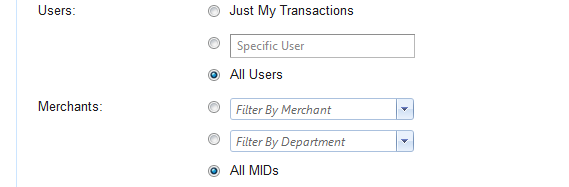
The Advanced Search page will come up listing multiple filters. The only required filters are the Merchant Option and User Option. One Merchant Option must be chosen to perform a search. Choose a MID from the drop down menu. You will only see MIDs that have been assigned to you. You must also choose one User Option. You can choose to search through transactions that you have processed or transactions processed by all users.
All the other filters are optional. You can search by as many filters and combination of filters as you want to narrow your search or you can search using few filters to generate a broad range of results.
If you would like to search for a Transaction Type, select the type from the drop down menu. If you would like to search by a Transaction Status then choose the status from the drop down menu. If nothing is selected for these fields then the default is "All" Transaction Types and "Success" for Transaction Status.
To search by account number, type in the last four digits of the card number. For Transaction Amount, Card Type, Account Holder First Name, Account Holder Last Name, Customer/ Patient Name, Unique ID, Order ID/ MRN#, Dept. References if you would like to use these fields to refine your search.
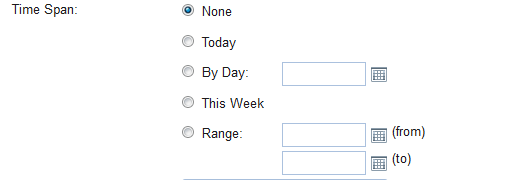
You can also search by a time span. You can select today or this week. You can also choose one specific day or a date range by typing a date in or clicking on the calendar icon and selecting a day from the calendar. If no date is entered, all dates will be included in the search results.
Search Results
Once you have chosen a Merchant Option and entered in your desired filters, click search. If you decide at this point that you don't want to perform this particular search you can click the reset button to reset the form.
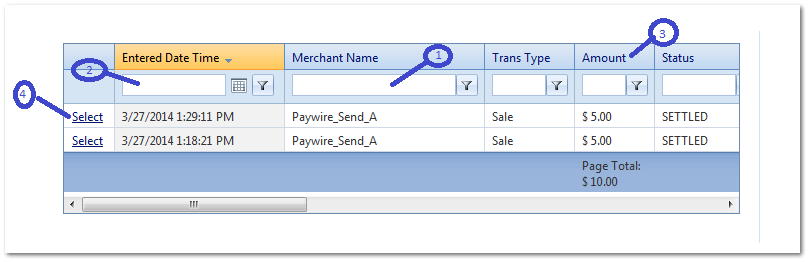
After you click search, the appropriate transactions will be listed. For each transaction there are multiple columns listing details about the transaction. You will see merchant, date and time, transaction type, transaction amount, status, the last four digits of the card number, user, and customer. You can (1) search through these transactions by typing into the fields at the top of each column. Each field has a (2) filter icon next to it. Click on this icon to further refine your search. You can also click on the (3) name of the column to sort the transactions in a different order.
Clicking (4) select next to a particular transaction in the search results will show more of the transaction details.