Credit Card Payment With EMV Reader
To use the Ingenico iPP320 EMV reader, the Paywire Receiver must be installed on a Windows PC. Please refer to the section:
Installation of Paywire Receiver to install and config.
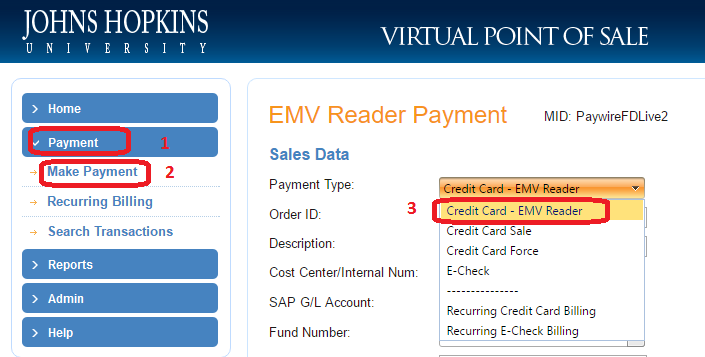
To create a credit card payment the use must click Payment from the main menu, then click Make Payment and lastly ensure that Credit Card - EMV Reader is selected within the Payment Type dropdown menu. (This option is only available for merchants that have been configured to use the iPP320 by Paywire.)
All required fields are marked with a red asterisks, the user must ensure that all requited fields are entered and valid before clicking Process Payment. What fields are required will depend on the currently selected merchant and that merchant's type. All merchant types can process credit card payments. Merchant types differ on what information is needed within the sales data portion of the Credit Card Sale payment form. Because the difference is located only the in the sales data portion, the the below section covering Sales Data has been broken down into for four parts
Type A,
Type B,
Type C, and
Type D. Please refer to the regular Credit Card Payment section for the details of the for types.
Sale Data
Fill out the appropriate data fields, then click on “Process Payment”.
Processing the Transaction on iPP320
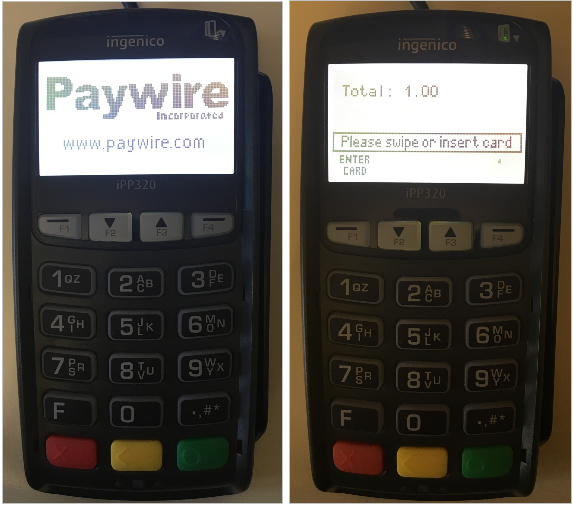
Now the user will need to process the transactions on the iPP320 reader. (Please look at the small screen on the iPP320 and follow the directions as shown below.)
The iPP320 reader will switch to the card swipe interface, the user can swipe/insert a card to process, or press F1 button to key in the card number or use the red button to cancel the transaction.
Credit Card Swipe
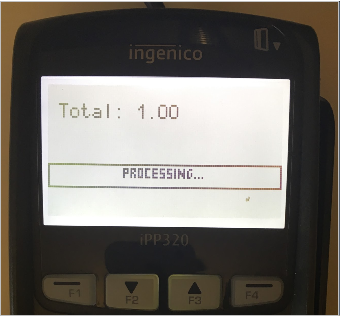
User swipe a credit card, then wait until the reader receives transaction response
EMV Chip Card
For an EMV card (with an EMV chip on the card), after the reader enters the card swipe interface, the user must insert an EMV chip card in the bottom slot to process an EMV transaction..
For some kinds of chip cards, the user may need to select the language or an on-chip application type (for example Debit/Credit/Checkings/Savings)..
The user should then confirm transaction total by pressing the F1 button.
Don’t remove the card until transaction is complete.
Key In Card Number
If the user does not have the card present or needs to key in the card number due to a damaged card:
-
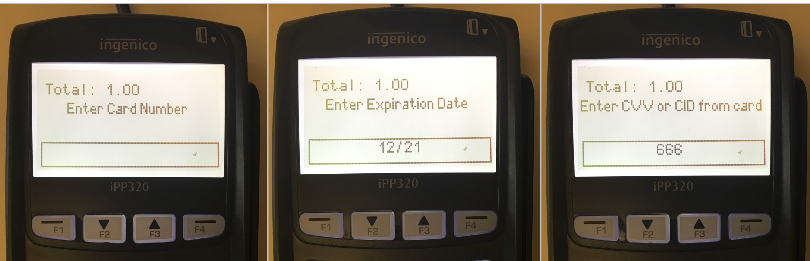
Press the F1 button to key in the card number, then press the Green button.
-
Enter the expiration date with format MM/YY, then press the Green button.
-
Enter the CVV code, then press the Green button.
-
Wait until the transaction finishes