Installation and Configuration
System Requirements
Windows 7/ Windows 8.1/ Windows 10 (32bit or 64bit)
Microsoft .NET Framework 4.5 (automatically installed by the installation batch file referenced in this document)
Visual C++ Redistributable for Visual Studio 2015 (automatically installed by the installation batch file referenced in this document)
Internet Explorer 11, Chrome or Firefox Browser
Installation Procedure
1. Make sure all the iPP320 and TS240 are disconnected from the PC.
2. Download setup packages:
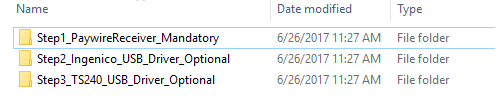
3. After downloading and extracting the installation package, there should be 3 folders shown as below:
Step1_PaywireReceiver is mandatory for all merchants,
Step2_Ingenico_USB_Driver and Step3_TS240_USB_Driver are optional depending on credit card merchants or remote check merchants.
locate the Install.bat file of each folder, double click to run, or right click and run as administrator.
You can also open Command Prompt (Admin), locate the file path and execute Install.bat.
(There are some pre-defined parameters in the .bat file. Please DO NOT install the application using anything but the .bat file supplied with this installation package, for example the .exe or .msi file.)
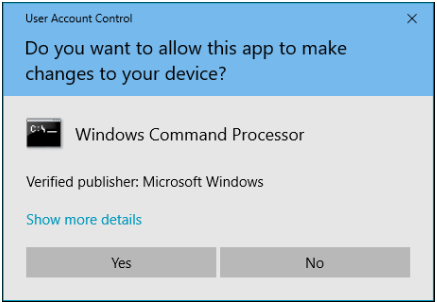
If the User Account Control prompt appears, click on Yes to continue.
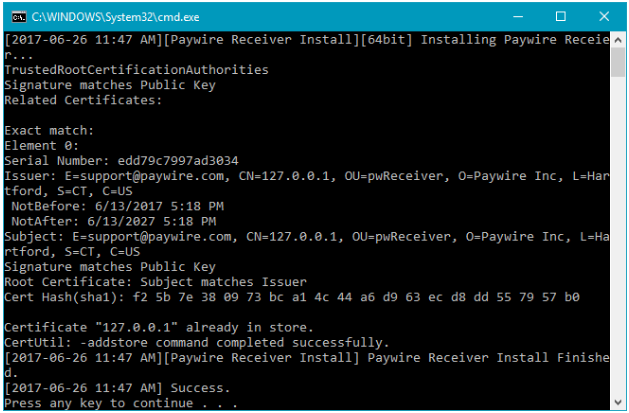
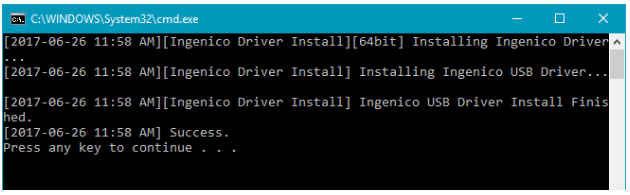
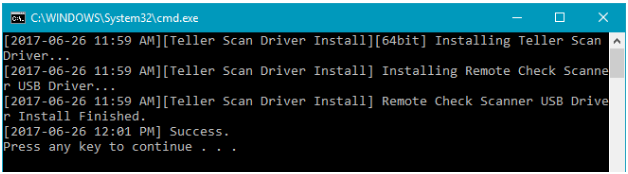
4. Depending on different drivers, this process could take up to several minutes to complete. The expected result should be “Success” without any error codes.
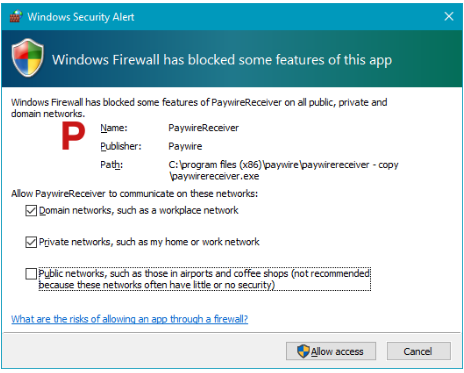
5. If the Windows Security Alert appears, check the options for Paywire Receiver to use internet connection depending on your network setting, then click on “Allow access”.
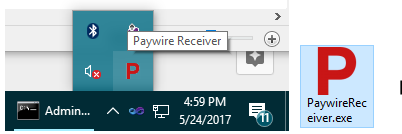
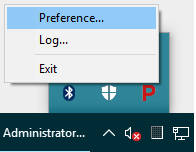
6. Once completed, the Paywire Receiver should be running in the system tray on the bottom right corner of the task bar, as shown below.
The Paywire Receiver will be set to start with the system boot after installation.
Browser Configurations
1. Internet Explorer 11
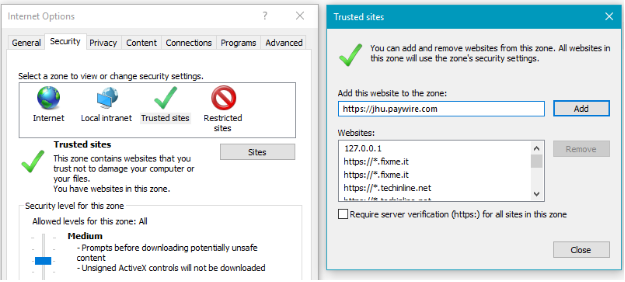
Add https://jhu.paywire.com to trusted sites if it is not already added.
Tools → Internet Options → Security Tab → Trusted sites → Sites.
In Advanced Tab, make sure Use SSL3.0 is NOT checked.
2. Google Chrome
Goto the config page using: chrome://flags/#allow-insecure-localhost
Click on “Enable” for Allow invalid certificates for resources loaded from localhost.
3. Mozilla Firefox
Make sure Paywire Receiver is running and the VPOS service is ON.
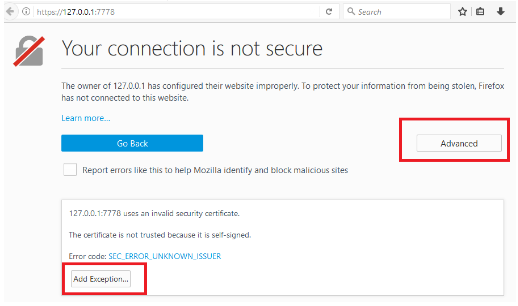
In the address bar, goto https://127.0.0.1:7778
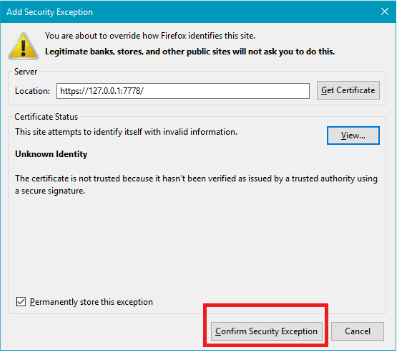
Click on “Advanced” then “Add Exception”
Paywire Receiver Configurations
The Paywire Receiver will be ready to use after the installation. No further configurations needed.
This section is only for system administrators to use for troubleshooting purposes.
1. Open configuration page by double clicking or right clicking on the Paywire Receiver icon in system tray.
2. Configuration Interface.
2.1 Service Activation.
The Paywire Receiver can work in different modes. For VPOS users, please make sure “VPOS Service” is on.
2.2 Transaction Settings.
Allow EMV Swipe:
In case the chip on the credit card is corrupted or damaged, this feature will allow user to swipe the chip card from the magnetic stripe reader on the right side of the IPP320. If turned off, the chip card will be rejected when swiped from the magnetic stripe reader and the user will be required to insert the EMV card in the EMV slot..
Allow Debit Card:
If this option is checked, the reader will prompt user to select payment method as credit card or debit card. However, the debit transaction will not be approved unless the merchant is configured to process debit cards.
Allow ACH
This is in preparation for user to key in ACH account number from iPP320. (Not activated at this time, i.e. for future use)
Require Zip Code
If this option is checked, when the user keys in the credit card number on iPP320, there will be an interface to enter zip code.
2.3 Debugging
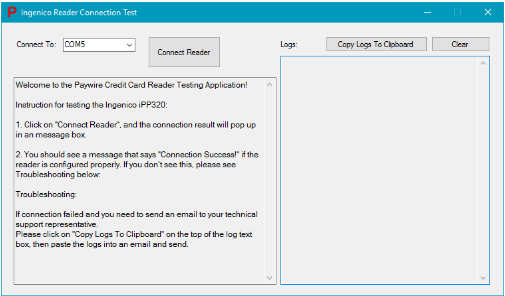
iPP320 Test App
Test the connectivity of Ingenico iPP320 EMV credit card reader. If any error messages returned, please send the error message to your technical support representative.
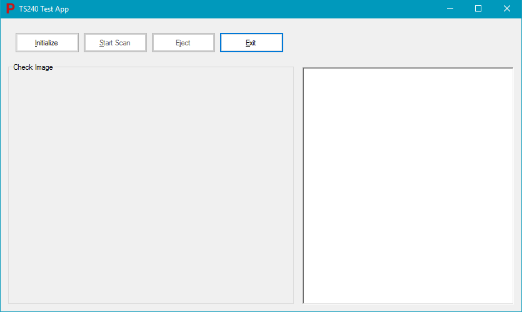
TS240 Test App
Test the TS240 check scanner. If any error messages returned, please send the error message to your technical support representative.
Update iPP320 Config
Please DO NOT use this feature unless instructed by Paywire.
When a reader’s configuration is corrupt, administrators can use this button to restore or update the configuration file for iPP320.