The News link displays a list of all the news starting with the most recent at the top of the list. You can search through the news by date and time or subject by using the filters above each column.
Adding News
To add a news story click Add News. You will be given blank fields to enter the Subject and Content.
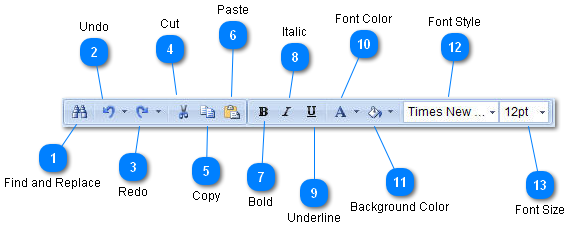
The first view of the content is in Design Mode. In Design Mode there is a tool bar that allows you to create the content.
One you are done entering and designing the content you can click Preview to view the content as it will be seen on the home page.
Besides creating the news in Design Mode, you can also click on HTML to enter the news in HTML format. Then click Preview to view the content.
When you are finished with the news click Save, and the news will be added to the news list and it will appear first on the home page. If at any point you decide that you no longer want to post this news, click Cancel at the bottom right of the screen.
Editing News
To edit a particular news entry, click Select in the row where the news is. You will be able to then see the details of the news and edit the subject and content. You can edit in Design and HTML Mode using the same tools that are available when creating news.
Once you are done editing, click Save to save the changes. If you wanted to delete this news story then click Delete at the bottom right of the screen. If you had made changes but then decided you no longer want to make these changes then click Cancel and the news will remain unchanged.