At the top right of the report screen there are several icons. The first icon is a pin. When you click this icon the report window will stay in place and can't be moved. Click the icon again to be able to move the screen. The next icons are: reload the page, minimize the page, maximize the page, and close out of the report.
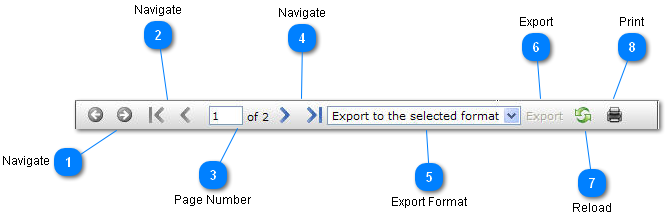
On the next row the first icons on the left are for navigating through the report. Click the arrows to move forward through the report and back to previous pages. You can also type a number in the page number box to skip to a page.
Navigate
Click to navigate back or forward in the browser if necessary.
Navigate
Click to go to previous page or skip to the first page.
Page Number
The current page number, type a number into the box to skip to that page.
Navigate
Click to go to the next page or skip to the last page.
Reports can be exported to Excel. To export the report choose Excel from the drop down menu and then click export. The report will open up in the new format.
Export Format
Select a format to export to from the drop down menu.
Export
Click to export.
Lastly, you can reload the report and click the printer icon to print the report as it is shown in the report window.


 t icon is a pin. When you click this icon the report window will stay in place and can't be moved. Click the icon again to be able to move the screen. The next icons are: reload the page, minimize the page, maximize the page, and close out of the report.