If the report size is too large, web browsers may have difficulties loading the results to display the report due to memory constraints. In addition, sometimes the user may just want to download the report file for convenience and time saving.
The ERE system provides an updated download-only feature for the user. The report is processed by the system in the background so that the user does not have to keep the browser open and wait until the report is finished. Using the ERE download feature, the user can even logout of the VPOS and return a few hours later to collect their report. This is how to do it:
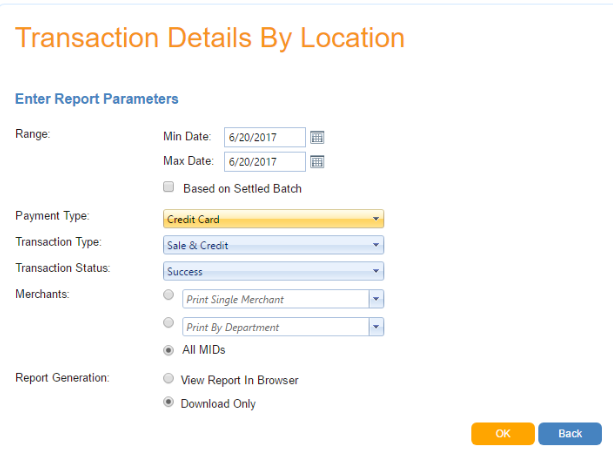
User fills in all the Report Parameters, then checks “Download Only” and then clicks the “OK” button. The system will then generate a download request for this report and the report will be generated on the server. (Currently the report date range for this feature is limited to 1 month.)
Once the report has been generated, the user will receive a notification email from report@paywire.com. (Please check your spam folder and add this email address to your whitelist if you don’t receive the email.)
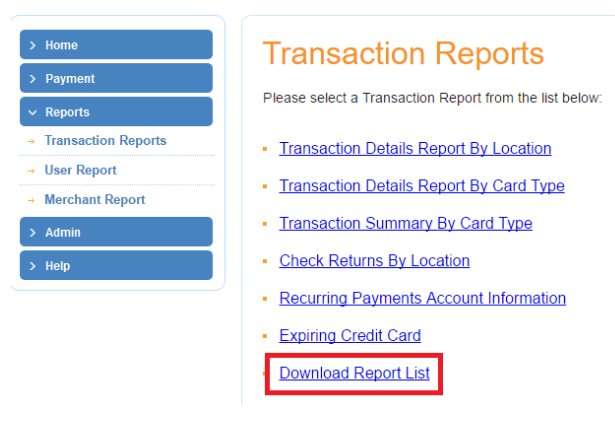
To download the report, the user will need to navigate to “Transaction Reports” -> “Download Report List”
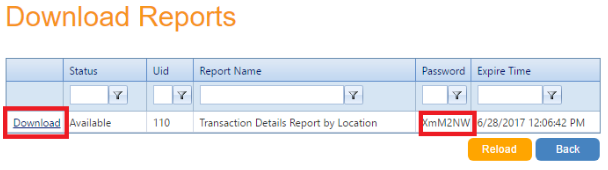
The user then click the “Download” link of each report to download the report file. For security reasons, the file will be encrypted with a password, shown in the download page. The user will need to input this password to open the report file.
The generated report file will remain in the server for 24 hours, then will be deleted permanently. The user can download it as many times as they want before it expires.